
Roblox not opening on Windows 11 is a common problem faced by many players after system updates, driver changes, or Roblox client issues. You may click the Roblox app or launcher, see a loading screen for a moment, and then nothing happens. In some cases, Roblox does not open at all, while in others it closes instantly without showing an error. This can be confusing, especially when Roblox worked perfectly fine before.
Windows 11 introduced changes in security, permissions, background services, and graphics handling. While these changes improve performance and safety overall, they can sometimes conflict with games like Roblox. The problem is usually not serious, but it does require the right troubleshooting steps to fix.
In this detailed guide, you will learn why Roblox fails to open on Windows 11, what causes this issue, and how to fix it step by step. Each solution is explained in simple language, making it easy even for beginners to follow.
Why Roblox Is Not Opening on Windows 11
Roblox may fail to open on Windows 11 for several reasons, and in many cases, more than one issue is involved at the same time. Windows updates, corrupted Roblox files, outdated graphics drivers, or background apps can prevent the game from launching properly.
Windows 11 also has stricter security settings compared to Windows 10. Features like Core Isolation, Memory Integrity, and Smart App Control can sometimes block Roblox processes from running. Additionally, Roblox relies on stable network services and system permissions, so even small conflicts can stop it from opening.
Understanding the cause helps you apply the correct fix instead of randomly trying solutions that may not work.
Check If Roblox Servers Are Working
Before changing anything on your PC, it is important to confirm that Roblox itself is working. If Roblox servers are down or experiencing issues, the app may not open or may close instantly.
Server problems are temporary and usually affect many players at the same time. If Roblox servers are unstable, there is nothing wrong with your system, and waiting is the only solution. Many players mistake server issues for Windows 11 problems, so this step should always come first.
Restart Your PC Properly
A simple restart can fix Roblox not opening on Windows 11 more often than people expect. Windows 11 sometimes keeps background processes running even after closing apps. These processes can interfere with Roblox when you try to launch it again.
Restarting your PC clears temporary system files, resets background services, and refreshes network connections. Make sure you choose a full restart rather than shutting down and turning the PC back on quickly, as fast startup can retain cached data.
Run Roblox as Administrator
Permission issues are a common reason Roblox fails to open on Windows 11. Running Roblox without administrator access can prevent it from creating or accessing required system files.
Running Roblox as an administrator allows it to bypass certain permission restrictions. This can help especially if Roblox closes immediately after launch or does not show any error message.
Update Windows 11 to the Latest Version
Outdated Windows 11 builds can cause compatibility issues with Roblox. Microsoft regularly releases updates that fix bugs, improve app compatibility, and patch system errors.
If your Windows version is outdated, Roblox may not function correctly, especially after Roblox releases client updates that expect newer system components. Keeping Windows 11 fully updated ensures better stability and compatibility.
Update Your Graphics Drivers
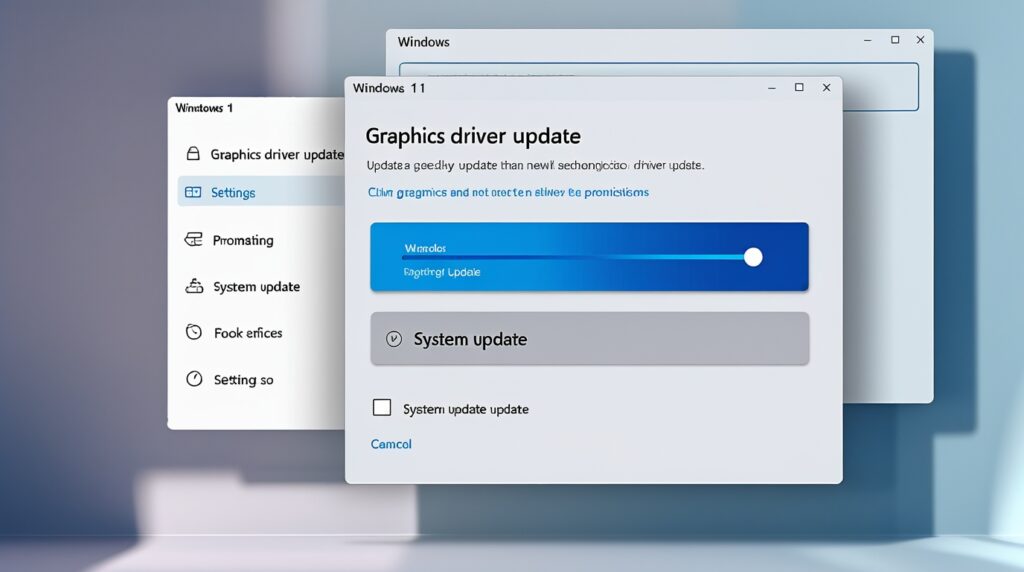
Graphics drivers play a major role in Roblox launching properly. Outdated or corrupted drivers can cause Roblox to crash or fail silently on startup.
Windows 11 may install generic drivers automatically, but these are not always optimized for gaming. Roblox relies on proper GPU support, even though it is not a heavy game. Updating your graphics drivers ensures Roblox can initialize its graphics engine correctly.
Disable Incompatible Background Apps
Some background applications interfere with Roblox on Windows 11. Screen recorders, FPS boosters, overlays, and third-party antivirus tools can block Roblox processes or cause conflicts.
If Roblox does not open while these apps are running, temporarily disabling them can help identify the cause. Once Roblox works, you can re-enable apps one by one to see which one causes the issue.
Turn Off Windows 11 Compatibility Mode
Compatibility mode is designed for older programs, but it can cause problems with Roblox on Windows 11. If Roblox is set to run in compatibility mode for Windows 8 or Windows 10, it may not launch properly.
Disabling compatibility mode allows Roblox to run using native Windows 11 settings, which often resolves launch issues.
Clear Roblox Cache Files
Corrupted cache files are a major reason Roblox does not open on Windows 11. Roblox stores temporary data to speed up loading, but if these files become corrupted, the app may fail to launch.
Clearing the Roblox cache forces the client to create fresh files, which often fixes startup issues without requiring a full reinstall.
Reinstall Roblox Completely
If Roblox still does not open after basic fixes, a clean reinstall is often the most effective solution. Simply uninstalling Roblox is sometimes not enough, as leftover files may remain on your system.
A full reinstall removes corrupted files, resets settings, and installs the latest Roblox client version. This fix works for most users experiencing persistent launch problems on Windows 11.
Check Firewall and Antivirus Settings
Windows Defender and third-party antivirus software can block Roblox without showing obvious warnings. This is more common after Windows 11 updates or antivirus definition updates.
If Roblox is blocked by your firewall or antivirus, it may not open at all or may close instantly. Allowing Roblox through security settings usually resolves this issue.
Disable Windows 11 Core Isolation (If Needed)
Windows 11 includes advanced security features such as Core Isolation and Memory Integrity. While these features improve system protection, they can cause compatibility issues with certain apps, including Roblox on some systems.
Disabling these features temporarily can help test whether they are causing Roblox not to open. If Roblox launches successfully afterward, you have identified the source of the problem.
Check System Date and Time Settings
Incorrect system date and time settings can cause Roblox connection and launch problems. Roblox uses secure connections that rely on accurate system time.
If your system clock is out of sync, Roblox may fail to authenticate or launch correctly. Syncing date and time automatically fixes this issue quickly.
Why Roblox Opens on Browser but Not the App
Some users find that Roblox opens in a web browser but not through the desktop app. This usually indicates a problem with the Roblox app installation rather than the account itself.
In such cases, reinstalling the Roblox app or clearing its cache almost always fixes the issue. The browser version working confirms that Roblox servers and your account are fine.
Is Roblox Not Opening a Hardware Issue
In most cases, Roblox not opening on Windows 11 is not caused by hardware limitations. Roblox runs on low-end systems and does not require powerful hardware.
However, extremely outdated graphics cards or unsupported drivers can cause issues. If your PC meets basic Windows 11 requirements, hardware is rarely the problem.
Safety and Legitimacy
Roblox not opening on Windows 11 is a legitimate technical issue. Be cautious of websites or videos claiming instant fixes using third-party tools or modified installers. These can be unsafe and may compromise your account or system.
Always use official Roblox files and standard Windows troubleshooting methods. Avoid downloading unknown programs that promise guaranteed fixes.
FAQ
Why does Roblox not open on Windows 11 at all?
This is usually caused by corrupted files, outdated drivers, or permission issues.
Can Windows 11 updates break Roblox?
Yes, sometimes updates introduce compatibility issues that require driver or app updates.
Does reinstalling Roblox fix Windows 11 launch issues?
In most cases, yes. A clean reinstall is one of the most effective solutions.
Is Roblox blocked by Windows Defender?
It can be. Firewall or antivirus restrictions may prevent Roblox from launching.
Why does Roblox open then close immediately?
This is often caused by corrupted cache files or background app conflicts.
Will resetting Windows 11 fix Roblox?
This is rarely necessary. Most issues can be fixed without resetting Windows.
Conclusion
Roblox not opening on Windows 11 can be frustrating, but it is usually caused by fixable issues such as corrupted files, outdated drivers, security restrictions, or background conflicts. By understanding the root causes and applying the right solutions step by step, most players can get Roblox working again without drastic measures. Windows 11 is fully capable of running Roblox smoothly, and once the correct settings are in place, the game should launch and run normally.