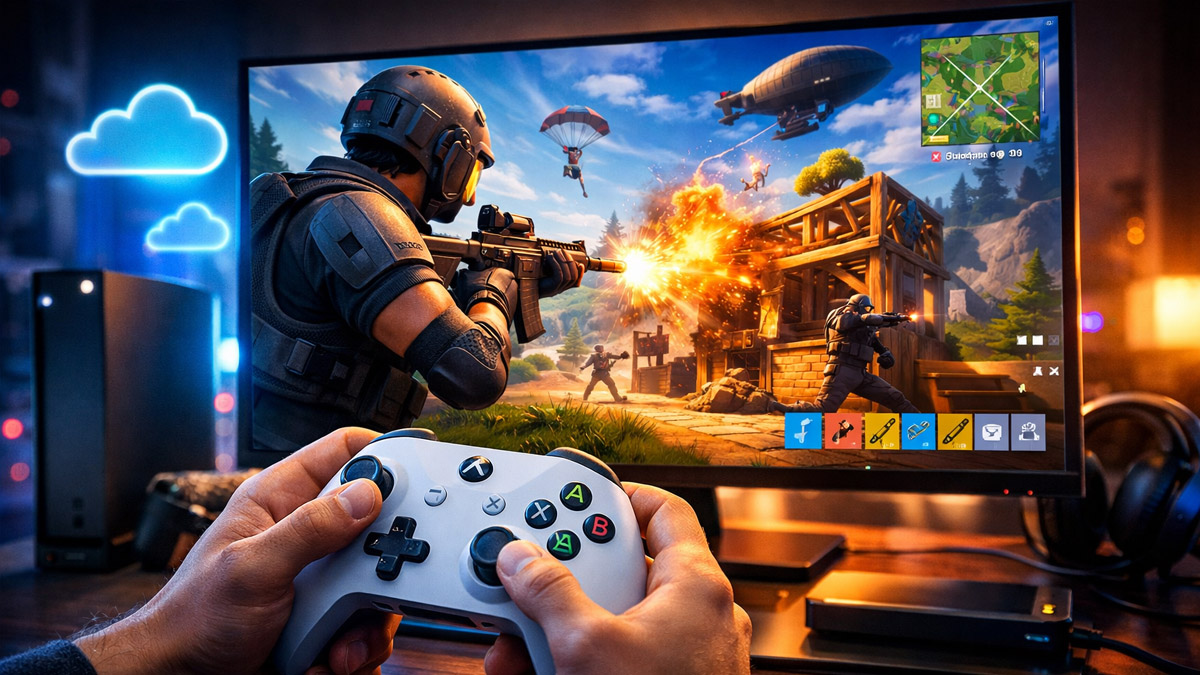

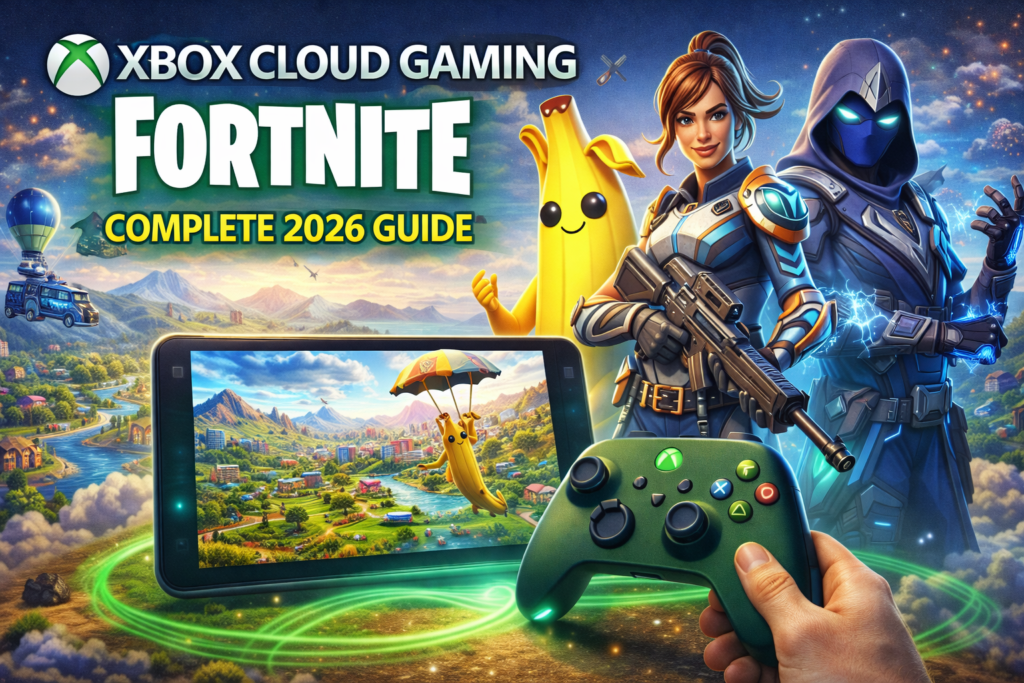
Fortnite remains one of the most popular online games in the world — and in 2026, Xbox Cloud Gaming Fortnite lets players jump into the action without downloads, installs, or high-end hardware. Whether you’re on a low-end PC, tablet, mobile device, or just don’t want to install the game, cloud gaming brings Fortnite to you instantly.
🧠 What Is Xbox Cloud Gaming Fortnite?
Xbox Cloud Gaming (formerly known as Project xCloud) is a cloud streaming service included with Xbox Game Pass Ultimate. It lets you play console-quality games like Fortnite by streaming them over the internet — similar to how you stream videos.
Instead of installing the Fortnite app, you stream it from Microsoft’s servers directly to your device’s browser or app.
✔ No download required
✔ No storage space used
✔ Play across devices
✔ Instant access
This means you can play Fortnite anywhere you have a stable internet connection.
🎮 How Xbox Cloud Gaming Works
Here’s the basic workflow:
- You sign in to Xbox Cloud Gaming
- Select Fortnite from the game library
- The game loads on a remote server
- Video & audio stream to your device
- Your inputs (touch/keyboard/controller) go back to the server
All heavy processing happens on the cloud — your device is just the display and controller.
📱 Supported Devices
Xbox Cloud Gaming works across a wide range of devices:
✅ Mobile Phones & Tablets
- iPhone (Safari)
- Android (Chrome, Edge)
💻 PCs & Laptops
- Windows
- macOS
- Chromebooks
📺 Smart TVs (some models)
Sometimes available via compatible browsers or apps
🎮 Xbox Consoles
Xbox Series X|S supports cloud streaming as well
This means even low-end devices can run Fortnite smoothly.
🚀 How to Play Fortnite on Xbox Cloud Gaming
🔹 Step 1: Xbox Game Pass Ultimate
You’ll need an active Xbox Game Pass Ultimate subscription.
🔹 Step 2: Sign In
Open your browser or Xbox app and sign in with your Microsoft account.
🔹 Step 3: Search for Fortnite
Find Fortnite in the cloud gaming library.
🔹 Step 4: Connect a Controller or Use Touch
Choose your input method:
- Bluetooth controller
- Touch controls (on mobile)
- Keyboard & mouse (limited support varies)
🎮 Controller & Input Support
Xbox Cloud Gaming supports:
✔ Xbox controllers
✔ PlayStation controllers
✔ Bluetooth gamepads
Most players find controllers more comfortable for Fortnite, especially in Battle Royale modes.
⚡ Best Internet Requirements
Since the game is streamed, your internet matters:
| Connection Type | Minimum | Recommended |
|---|---|---|
| Wi-Fi | 10 Mbps | 20+ Mbps |
| Mobile Data | 4G LTE | 5G 🌐 |
Stable connections reduce lag, input delay, and stream drops.
💡 Pros of Xbox Cloud Gaming Fortnite
✅ Play Without Downloading the Game
No installation, no updates — you just load and play.
✅ Works on Many Devices
Even old laptops or tablets can run Fortnite.
✅ Saves Storage Space
Perfect for phones or low-storage laptops.
✅ Cross-Progress and Cross-Play
Progress, items, and purchases carry over from other platforms.
✅ Instant Access
Great for gaming on the go.
⚠️ Cons & Limitations
📶 Internet Dependent
Cloud gaming needs strong, stable internet — weak connections cause lag or disconnects.
⏱️ Input Delay
Slight latency compared to local installs, especially in fast-paced modes.
📊 Lower Graphics Fidelity
Visuals may be reduced to maintain smooth streaming.
🕹️ Controller Recommended
Touch or keyboard can feel less responsive in competitive play.
🧠 Practical Tips for Better Cloud Play
⚡ Use 5G or 5 GHz Wi-Fi
More stable and lower lag than standard Wi-Fi.
📶 Avoid Hotspots in Crowded Areas
Multiple users can slow connections.
🔁 Close Background Apps
Frees up bandwidth and reduces stutter.
🎮 Prefer Controllers for Competitive Modes
Better aiming and movement.
🎯 Common Issues & Fixes
❌ Game Not Loading
Fixes:
✔ Refresh browser
✔ Clear cache
✔ Try a different browser (Edge/Chrome works best)
❌ Input Lag
Fixes:
✔ Use wired controller if possible
✔ Improve internet speed
❌ Disconnects
Fixes:
✔ Switch to stronger network
✔ Avoid peak usage times
🆚 Xbox Cloud Gaming vs Native Fortnite App
| Feature | Cloud Gaming | Native App |
|---|---|---|
| Installation | ❌ No | ✅ Yes |
| Storage | ❌ No | ✅ Yes |
| Performance | ⭐ Good | ⭐ Excellent |
| Updates | ❌ Automatic | 🔁 Manual |
| Input Delay | Moderate | Minimal |
| Device Support | Wide | Limited |
Cloud gaming wins for accessibility, while native installs excel in performance.
Xbox Cloud Gaming Fortnite makes Fortnite accessible on more devices than ever — perfect for excursions, older hardware, and casual play. While native installs still offer better performance, cloud gaming brings the joy of Fortnite to players without downloads or storage headaches.
🎮 Whether you’re playing Battle Royale, Creative, or casual modes, cloud gaming expands where and how you can enjoy Fortnite.