
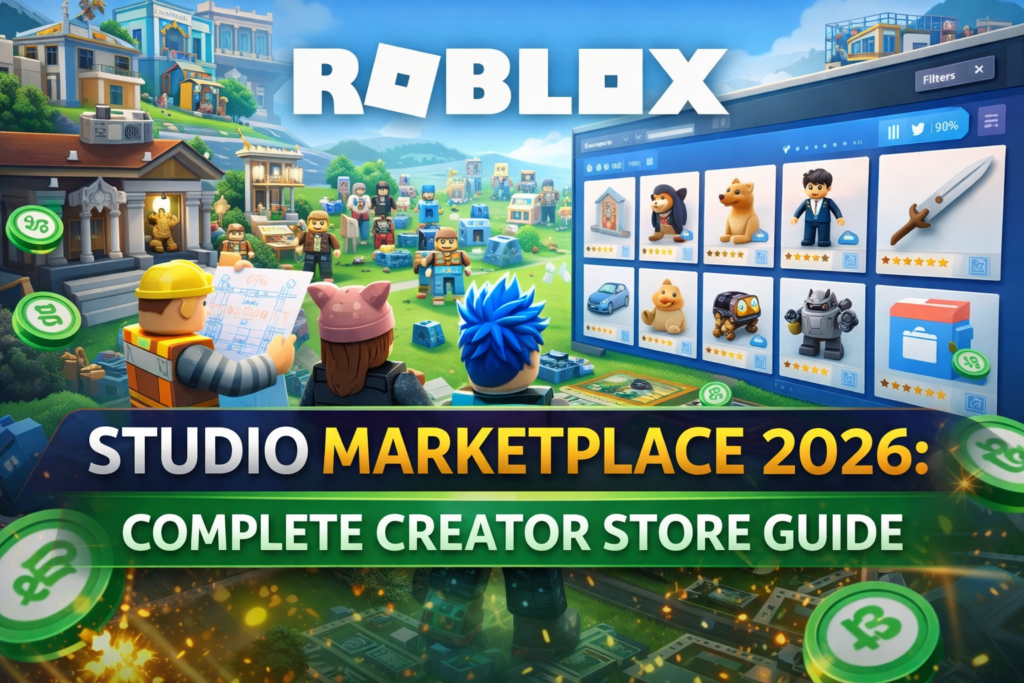
The Roblox Studio Marketplace—officially the Creator Store—is a game-changer for US developers in 2026, letting you snag free or paid assets like models, plugins, audio, and meshes directly in Studio’s Toolbox. Whether you’re building obbies, tycoons, or RP worlds, it’s packed with essentials like HD Admin, realistic skies, and brainrot-themed props. Since the Dec 2025 update, eligible creators can even sell models for real USD—bypassing Robux fees. This detailed guide covers access, buying/selling steps, top picks, fees, fixes, and trends. Perfect for beginners to pros—level up your dev game! ⚡
What is the Roblox Studio Marketplace (Creator Store)? ✅
The Creator Store is Roblox’s one-stop shop for development assets, integrated into Studio via the Toolbox. Unlike the Avatar Marketplace (roblox.com/catalog for UGC clothing/accessories), this focuses on tools for creators:
- Asset Types: Models (buildings, props), Plugins (scripts/UI), Audio, Images/Decals, Meshes, Fonts, Videos.
- Key Features: Trending/Shop New/Essential tabs, ratings (e.g., 95% on Realistic Sky), previews, Try in Roblox.
- Pricing: Mostly free; paid models ~$2.99 USD (Robux or direct).
- Access: create.roblox.com/store or Studio Toolbox.
Toolbox Integration: Search/insert assets instantly—no exports needed.
How to Access the Marketplace in Roblox Studio (Step-by-Step)
- Open Studio: Launch Roblox Studio > New place.
- Open Toolbox: View tab > Toolbox (or Home tab icon).
- Switch to Creator Store: Toolbox > Marketplace tab (default) > Trending/Shop New/Essential.
- Search/Browse: Type “obby checkpoint” > Filter free/paid.
- Insert: Click asset > Drag to Workspace.
Web Access: create.roblox.com/store > Models/Audio/etc. > Buy > Auto-syncs to Studio Inventory.
Top Asset Categories & Popular Picks in 2026
From Trending/Essential tabs—obby builders and admin tools dominate US devs.
| Category | Examples (Ratings) | Price | Best For |
|---|---|---|---|
| Models ⭐ | HD Admin (93%, 100K votes), Aesthetic Sky (94%), Sword (91%) | Free/$2.99 | Obby/Tycoon |
| Essential | Realistic Sky (96%), Neutral Spawn (95%), Grass Baseplate | Free | Starters |
| Shop New | Realistic Beach Props, Medieval Weapons Pack, PBR Sci-Fi Kit | $2.99 | Pro Builds |
| Plugins | Donation Board 4.0, Crafting System | Free/Paid | Monetization |
| Audio/Images | OOF Death Sound, Night Skies | Free | Immersion |
2026 Hits: Brainrot packs (e.g., “67 Brainrot”), Steal a Brainrot maps.
How to Buy Assets: Quick & Easy ✅
- In Toolbox: Search > Click > Insert (free auto-adds to Inventory).
- Paid: Robux prompt > Confirm > Downloads to Creations tab.
- Web Buy: create.roblox.com/store > Purchase > Syncs to Studio.
Pro Tip: Use filters (Free, High Rating >90%) for quality—avoid low-vote free models (viruses rare but check).
How to Sell Your Assets on the Creator Store (2026 Guide)
Eligibility (Strict in 2026):
- ID Verified account.
- Premium 1000/2200 (keep items on-sale).
- Good moderation history (no bans).
- Age 18+ or 13-17 w/parent consent; supported countries (Stripe).
- Models: <15K dependencies; individual accounts only.
Steps to Publish/Sell:
- Build in Studio: Create model/plugin > Test thoroughly.
- Upload: Explorer > Right-click > Save to Roblox > Asset Type (Model/Plugin).
- Submit: Title, Description, Tags (5 max) > Pay upload fee > Moderation queue.
- Publish: Creator Dashboard > Set price (dynamic floor) > On Sale (1/day limit for some).
- USD Sales (New!): 100% net proceeds via Stripe—no DevEx needed.
Moderation: Auto-checks tech/metadata; manual for policy. Appeals via ticket.
Fees, Commissions & Earnings
| Sale Type | Roblox Cut | Creator Gets | Notes |
|---|---|---|---|
| Robux Sales | 30% | 70% Robux | DevEx to cash |
| USD Models ⭐ | Platform fees only | 100% net USD | Stripe payout |
| Upload Fee | Varies (e.g., Limiteds) | N/A | One-time |
Payouts: Monthly via DevEx (1000R = $3.50) or Stripe.
Pros & Cons of Roblox Studio Marketplace
| Pros ✅ | Cons ⚠️ |
|---|---|
| Millions of assets, instant insert | Moderation delays (days-weeks) |
| USD earnings for models | Strict eligibility (ID/Premium) |
| Ratings/reviews for trust | Piracy/reuploads common |
| Free essentials galore | No group sales for models |
Common Issues & Fixes ⚠️
- Asset Won’t Insert: Toolbox > Inventory tab > Refresh. Fix: Reinstall Studio.
- Moderation Rejected: Check policy (no IP copies, modesty layers). Appeal: Creator Dashboard.
- Search Broken: Clear cache; use web store.
- Virus Fears: Stick to high-rated; scan scripts.
- Limits Hit: Upgrade Premium; wait 24h.
Toolbox vs. Creator Marketplace: Quick Comparison
| Feature | Toolbox (Studio) | Web Creator Store |
|---|---|---|
| Access | Instant insert | Browse/buy first |
| Search | Live filters | Advanced tags |
| Best For | Building ⭐ | Selling/previews |
Also Read: Roblox Account Recovery Without Email: Step by Step Guide
2026 Trends & Tips for US Creators
- Model Boom: USD sales exploding—trending: Brainrot obbies, realistic props.
- Upcoming: Makeup looks (Early 2026), Animation Packs (Mid).
- Tips: Unique thumbnails/tags; Asset Privacy Beta for anti-piracy; promote on DevForum.
- Monetize: Sell HD admins, skyboxes—top earners hit $1K+/mo.
Dive into create.roblox.com/store—built your first model? Share in comments! Happy creating