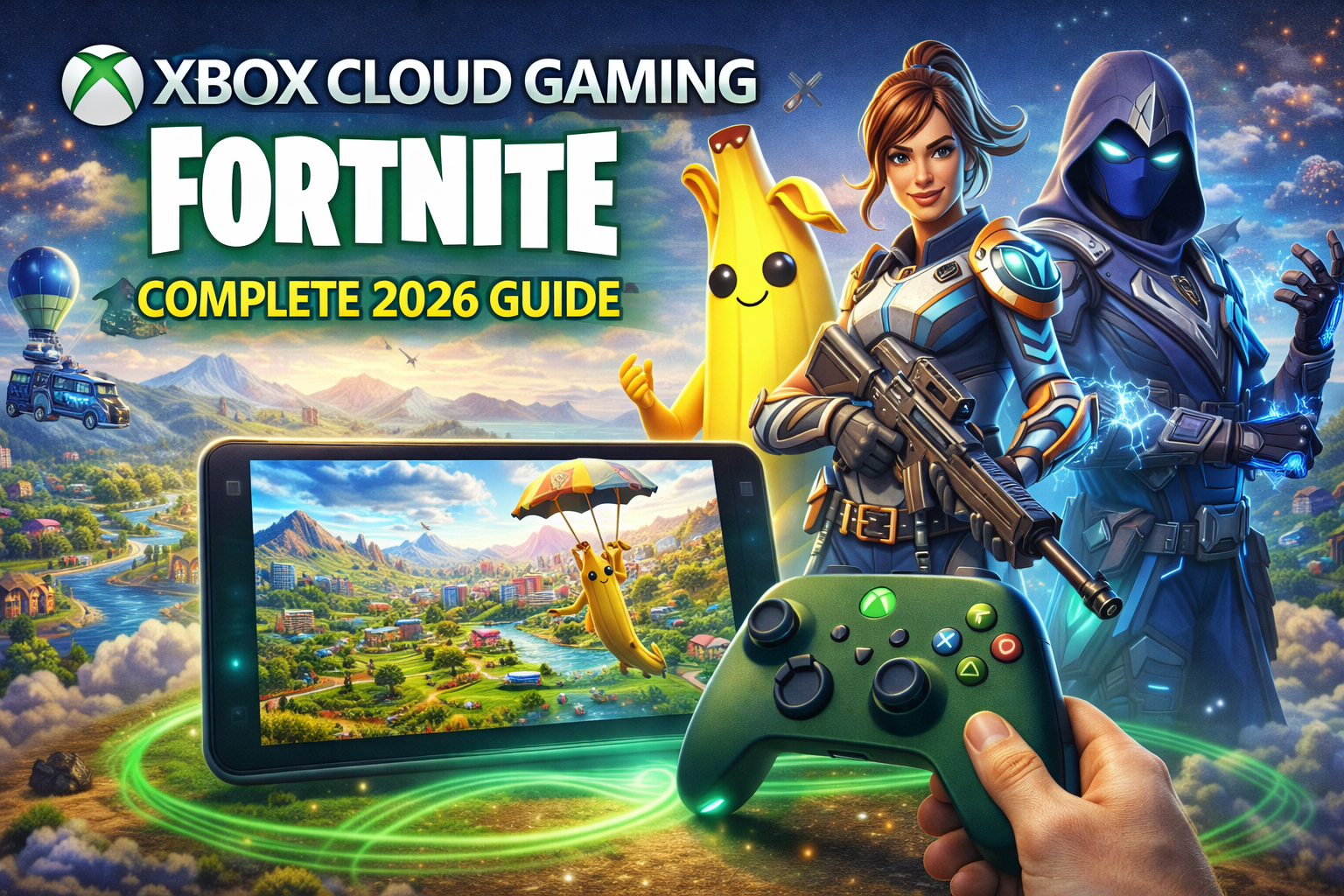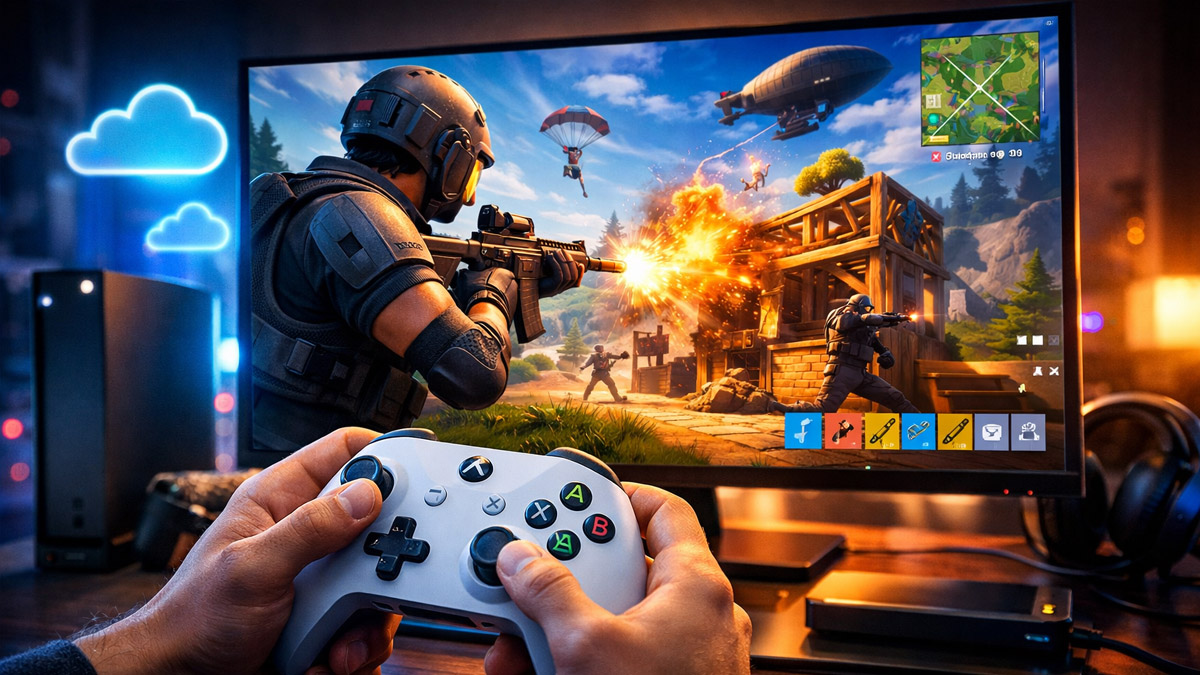

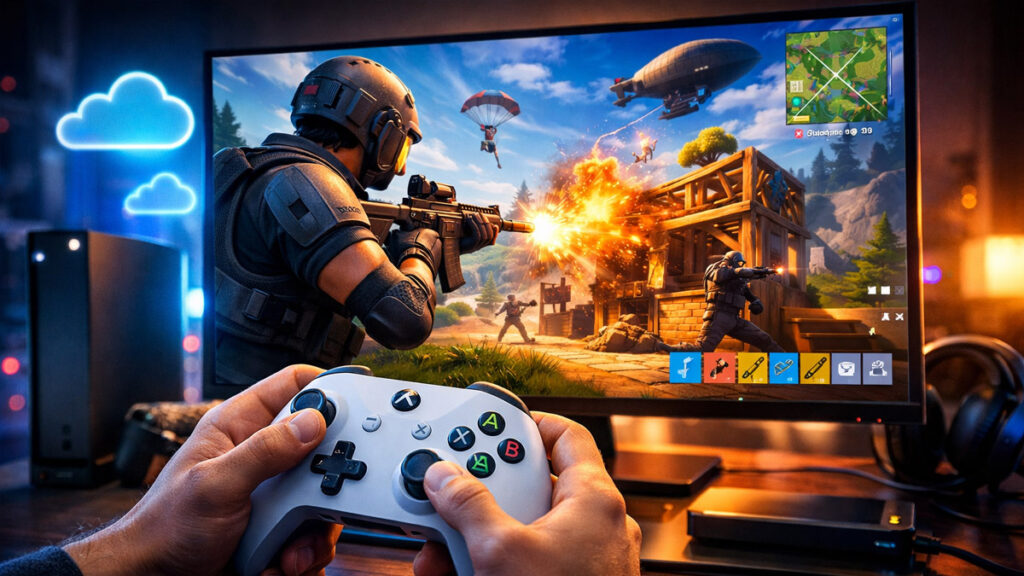
Fortnite Xbox Cloud Gaming in 2026 lets players jump into epic Battle Royale matches without downloading the game to their console or PC. Instead of installing dozens of gigabytes locally, you stream gameplay over the internet—similar to watching a video, but interactive. For players with limited storage, low-end hardware, or those who want instant access on multiple devices, cloud gaming has become a go-to option.
Microsoft’s Xbox Cloud Gaming (part of Xbox Game Pass Ultimate) supports Fortnite, meaning the same popular map, updates, cosmetics, and seasons are available via the cloud. You can play on Xbox Series consoles, Windows PCs, mobile devices, and even select smart TVs. While cloud gaming simplifies access, it also requires specific requirements, good internet, and optimized settings to keep Fortnite responsive and enjoyable.
What Is Xbox Cloud Gaming and Fortnite Streaming
Xbox Cloud Gaming (xCloud) lets you stream Xbox games from remote servers to your device. Instead of installing Fortnite locally, the game runs on Microsoft’s powerful servers, and your screen is streamed to your console, PC, or phone. Your inputs—movement, shooting, building—are sent back to the server, creating interactive real-time gameplay.
With Fortnite on Xbox Cloud Gaming, you play the full game with all seasons, updates, Battle Pass features, and cross-play support. Because Fortnite is free-to-play, you pay only for the cloud service (Game Pass Ultimate) and not for the game itself.
🎮 How to Play Fortnite on Xbox Cloud Gaming (Step-by-Step)
1. Get Xbox Game Pass Ultimate
To access Xbox Cloud Gaming you need an active Xbox Game Pass Ultimate subscription. This service includes cloud gaming on compatible devices.
2. Sign In With Your Microsoft Account
Make sure you use the same Microsoft account you want to game with. Your Fortnite progress, Epic account linkage, and cross-play settings sync automatically through your account.
3. Open the Xbox Cloud Gaming App/Website
On supported devices, open the Xbox Cloud Gaming app (Xbox Series X|S, Android, iOS) or visit the cloud gaming web portal in your browser.
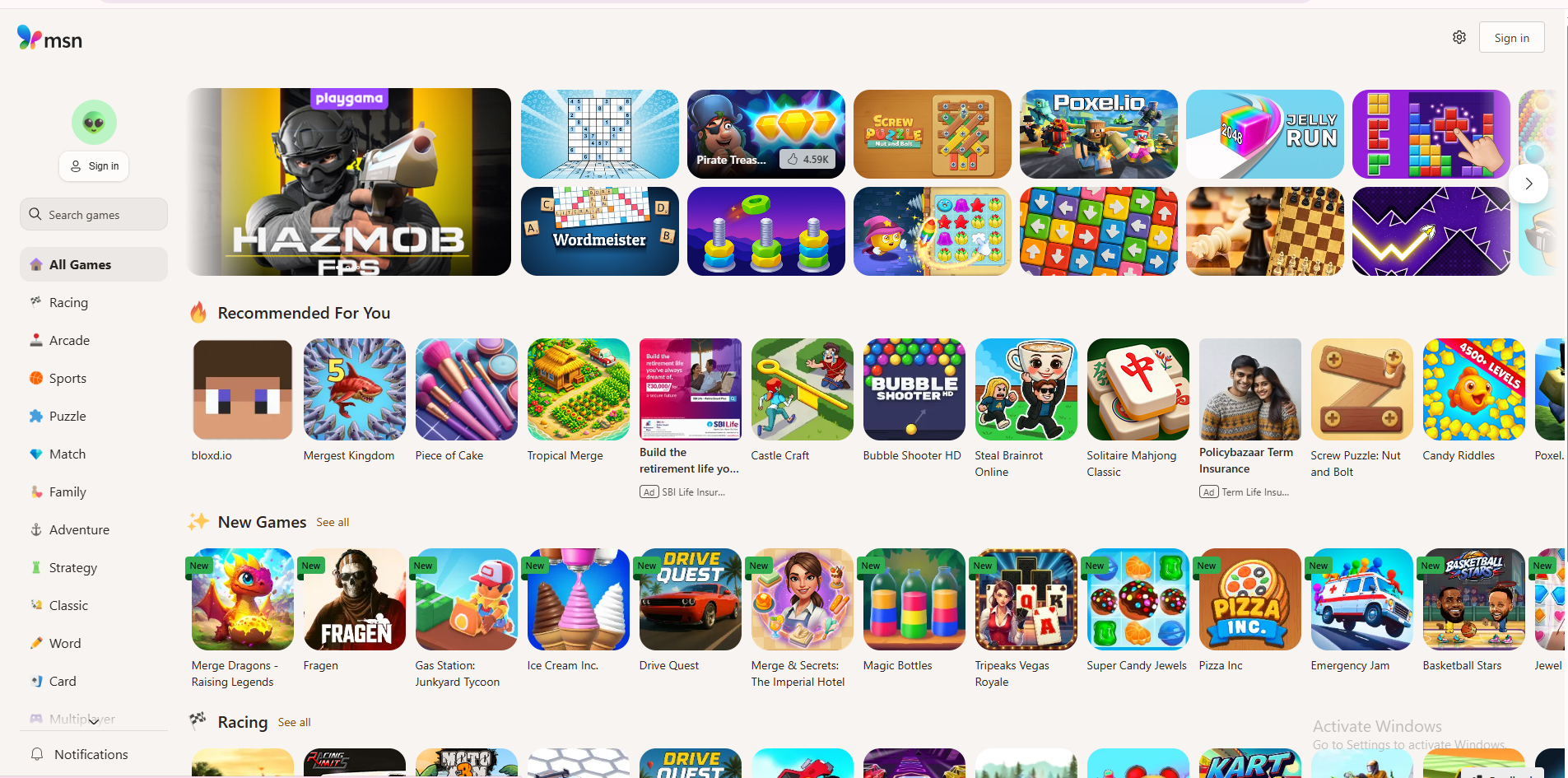
4. Find Fortnite in the Cloud Gaming Library
Search for Fortnite in the cloud library. Select “Play” and the streaming session will start instantly.
5. Connect Your Controller or Input Device
For best experience, use a controller (Xbox controller recommended) or compatible input device depending on your platform.
6. Start Playing
Once the stream loads, you’re in. Fortnite on cloud plays like the installed version, with access to Battle Royale, Zero Build, Creative, and more.
📶 Requirements for Fortnite Xbox Cloud Gaming
Internet Connection
Fast and stable internet is the most important part of cloud gaming.
- Recommended: 15 Mbps or higher for reliable 1080p streaming
- Minimum: 10 Mbps
- Latency/Ping: Lower than 40 ms to the nearest Xbox cloud data center
- Wi-Fi: 5 GHz Wi-Fi preferred, or wired Ethernet if available
Because streaming sends both video and your inputs back and forth, both speed and consistency matter. High spikes or unstable connections result in input lag or image stutter.
Supported Devices
- Xbox Series X | S (via cloud app)
- Windows PCs (via browser or app)
- Android phones/tablets (Xbox app)
- iPhone/iPad (via Safari/game browser portal)
- Compatible smart TVs with cloud gaming support
Not all browsers or devices may support full controller mappings, so check device compatibility before playing.
Subscription
Xbox Game Pass Ultimate subscription is required. Standard Game Pass or free Xbox accounts won’t unlock cloud gaming capability.
Controller / Input
- Xbox Wireless Controller (recommended)
- Bluetooth/USB controllers with standard mappings
- Touch controls on mobile where supported
Keyboard and mouse may work on some platforms, but controller use is more consistent across devices.
🔧 Best Cloud Gaming Settings for Fortnite in 2026
Optimizing settings helps reduce input lag, improve responsiveness, and get smoother visuals.
🕹️ In-Game Settings
Frame Rate Limit:
- Set to Uncapped or 60 FPS (if supported by the cloud stream quality).
Streaming prioritizes frame pacing, so match the highest allowed refresh rate.
Graphics Preset:
- Auto/Performance: Prioritize stable framerate over visual quality.
Shadows:
- Off or Low — reduces unnecessary rendering workload.
Effects & Post-Processing:
- Low — helps reduce visual clutter.
View Distance:
- Medium or Far — balanced visibility without heavy streaming cost.
Motion Blur:
- Off (improves clarity and reduces perceived latency).
Vsync / Triple Buffering:
- Off — unnecessary for cloud streams and can increase latency.
📡 Network and Device Settings
Use Wired Ethernet or 5 GHz Wi-Fi:
Wired connections almost always outperform 2.4 GHz Wi-Fi in stability and latency.
Close Background Apps:
Streaming services, downloads, and other real-time apps steal bandwidth and can cause stutters.
Enable Quality of Service (QoS) on Router:
Prioritize gaming traffic to improve latency consistency.
Change Server Regions (If Applicable):
If you experience high lag, try switching cloud gaming region where possible or choose a closer server.
💡 Tips for Reducing Input Lag
Input lag is the delay between your button press and the action on screen. In cloud gaming, this is influenced by connection and settings.
- Use low-latency gaming mode on TVs/monitors
- Keep distance to your Wi-Fi router small
- Avoid peak network usage hours
- Disable wireless interference (place router centrally)
🎮 Pros and Cons of Fortnite on Xbox Cloud Gaming
✅ Pros
No Downloads or Installs:
Instant access without waiting for huge updates.
Cross-Platform Play:
Play with friends on PC, console, or mobile.
Device Flexibility:
Change screens without losing progress.
Automatic Updates:
Always play the latest patch without downloads.
❌ Cons
Requires Strong Internet:
Weak connections lead to lag or disconnects.
Visual Quality Depends on Network:
Streaming may lower texture fidelity on unstable connections.
Input Lag Is Possible:
Even optimized settings can’t match local installs on perfect hardware.
🔁 FAQ
Do I need Xbox Game Pass Ultimate to play Fortnite on cloud?
Yes — Ultimate includes cloud gaming access.
Can I play Fortnite offline?
No — cloud gaming requires a live internet connection.
Can I use keyboard & mouse?
Some platforms support it, but controllers are more reliable.
Does Fortnite cloud support Creative and Zero Build?
Yes — all major modes are available.
Will progress sync?
Yes — your Fortnite account progress is shared across cloud and installed versions.
Can I stream Fortnite on iPhone/Android?
Yes — via Xbox Cloud Gaming in supported browsers/apps.
Fortnite on Xbox Cloud Gaming in 2026 offers a powerful way to stream full Battle Royale action without installs. With the right internet connection, device compatibility, and optimized settings, you can enjoy smooth gameplay on consoles, PCs, and mobile devices. While cloud gaming depends on your network, it delivers unmatched convenience, instant access, and cross-platform flexibility. Adjust settings wisely, prioritize connectivity, and you’ll get the best Fortnite experience without downloading huge files or juggling updates.